MCD Based Simulation with 3DEXPERIENCE
This section describes the processing flow to prepare, post-process and MCD simulate a manufacturing process using 3DEXPERIENCE. In order to perform MCD based simulation you must have both a Control Emulator run-time license (cer270) from Icam and a 3DEXPERIENCE NC Machine Code Validation Specialist license (NMV) from Dassault Systèmes.
Machining and Simulation Setup
3DEXPERIENCE must be first setup to use Icam software products before you can post-process a generated aptsource file with Icam Post GENER, or MCD simulate a generated NC program using CERUN and DELMIA
To perform the setup, start a 3DEXPERIENCE manufacturing process and select Preferences from your name menu to bring up the Preferences dialog, as shown below:
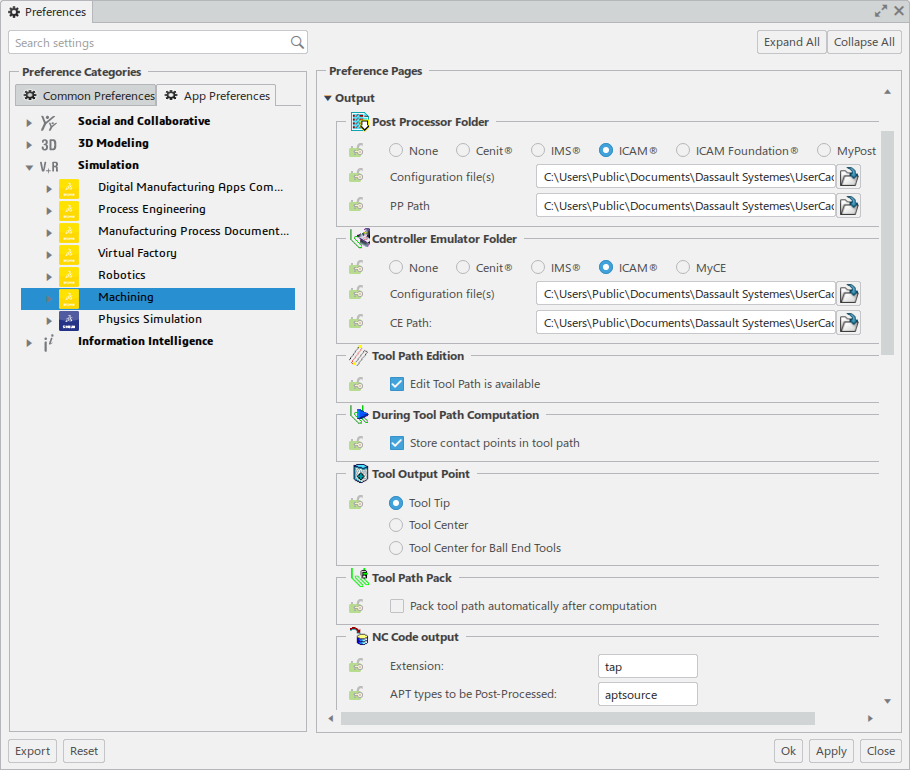
Select in the Preference Categories section, and then expand the Output tab in the Preference Pages section. The default settings are normally appropriate, with the following exceptions:
Select Icam for the Post Processor and Control Emulator folders.
Edit the NC code output Extension and change it from CATNCCode to “tap” (or whatever default extension you are using with Icam Post GENER).
Next, expand the Simulation tab in the Preference Pages section.
Select the “Display tool path during machine simulation” checkbox if you would like to see a trace of the tool tip motions during machine simulation.
Select the “Enable material removal computation” checkbox to have DELMIA perform in-process stock material removal calculations during machine simulation.
Your preferences will be remembered from one 3DEXPERIENCE session to the next.
Part Operation Settings
3DEXPERIENCE has the concept of a “Part Operation” node in the PPR tree, which contains general information about the manufacturing process. The following Part Operation dialog settings are of interest when post-processing or when simulating the MCD.
The stock accuracy setting defines the level of detail of in-process stock calculations. There is a trade-off between increased accuracy and CPU/
RAM requirements. The finer (i.e., smaller) the accuracy, the longer it will take to compute in-process stock and the greater the memory requirements will be.
These settings define the default collision checking behavior during tool path simulation; not the behavior when using CERUN to perform MCD based machine simulation with a DELMIA model.
The Part Operation must be setup to run with a DELMIA machine model in order to perform MCD based simulation. This is done by selecting the “Assign Machine from Database” feature in the PPR tree. The feature is accessible by right-clicking the physical product and expanding the Machine Configuration menu. Machine settings are accessible by editing the NC Resource.
This field identifies the selected machine model. To choose a DELMIA machine model, select the “Assign Machine from Database” and search for the machine in the search bar. Select the required machine in the search result. This will update the Name and Comments fields to those defined in the model.
Depending on the creator of the model, some or all of the NC Resources fields discussed below may be set read-only to inhibit changes to a production model.
Select the control emulator to use in the “Control Emulator” drop-down field. The available choices are limited to those control emulators that are defined in the Icam database that was associated to 3DEXPERIENCE by the CAM Integration setup utility (see “Setup CERUN”). Control emulators are created using QUEST, as described in “QUEST”.
The remaining Machine Editor settings primarily affect post-processing.
Select the post-processor to use in the “Post Processor” drop-down field. The available choices are limited to those post-processors that are defined in the Icam database that was associated to 3DEXPERIENCE by the CAM Integration setup utility.
Select an appropriate Icam pptable in the “Post Processor words table” drop-down field. A pptable is a text file that defines the syntax of aptsource that is generated by 3DEXPERIENCE. Each post-processor vendor has its own unique vocabulary that it expects to find in the aptsource file. The pptable naming convention is hopefully descriptive enough to guide your choice.
Select ISO as the NC data type, to tell 3DEXPERIENCE to run the post-processor when generating NC code. If APT is chosen instead, then 3DEXPERIENCE will generate an aptsource file but will not call up post-processing nor will it be possible to automatically associate the MCD file of the manufacturing program for machine simulation.
Select Axis (X,
Y, Z, I, J, K) when simulating a 4 or 5-axis mill or a 4 or 5-axis mill/ turn center. Select Point (X, Y, Z) when simulating 2 or 3-axis mills or 2-axis lathes. For best results, select all of the 3D linear, 2D circular, 3D circular and Helical interpolation checkboxes. Only select the 3D Nurbs interpolation checkbox if the manufacturing program will be run on a machine that has an Icam supported spline interpolation format. Note that Icam Post GENER V27 does support spline interpolation, but CERUN V27 does not yet support this form of interpolation.
The remaining settings also affect how the aptsource is generated and therefore how the program will be post-processed and later simulated. Use the F1 key to obtain detailed information on the effect of each of these settings.
Select the “Radius compensation” checkbox to have the ability to define tool length and tool radius compensation offsets. If this checkbox is not selected, each tool can only have a single tool compensation offset associated with it. When selected, it will be possible to associate multiple corrector numbers to a tool using the Tool Definition dialog box (first select More and then select the Compensation tab).
This panel defines the home point of the machine at the start of processing. This information is normally not editable.
This panel defines how 3D contact cutter compensation information is output to the aptsource file. Note that Icam Post GENER V27 and Control Emulator CERUN V27 do not yet support this form of compensation.
This panel defines additional formatting details of the aptsource file.
Press OK to save the Machine Editor settings, then OK again to save the Part Operation settings. These settings will be remembered for the current manufacturing process only.
Post-Processing with GENER
The Part Operation settings should be used to select the post-processor, PPTable and other aptsource generation options (as described in the preceding section) before attempting to generate or simulate MCD code.
MCD can be generated from 3DEXPERIENCE in either interactive mode or batch mode. With batch mode, the post-processor is run from a separate process of 3DEXPERIENCE, so that the current session is not held up during post-processing. Unless post-processing routinely takes a long time to complete, the interactive mode of MCD generation should be used. The 3DEXPERIENCE interface is nearly identical.
To create the MCD file for the current manufacturing process, use the Analysis & Output toolbar to choose either “Generate NC Code Interactively” or “Create NC Batch Job” selections. For interactive generation, a “Generate NC Output…” dialog will appear, with the settings listed below that may be of interest when post-processing. For a batch job, select “Compute NC file” in the Description field and then click on the NC Output Options button to access these settings.
The Output File is the name of the MCD file that will be generated by post-processing. The file extension of the output MCD file is defined in the Legacy Preferences settings (see “Machining and Simulation Setup”). If the post-processor has been setup to output a different file extension (i.e., QUEST “General Description/
Output Format” question #110), then 3DEXPERIENCE will be unable to automatically associate the generated MCD file with the manufacturing program. In this case, the MCD file can be manually selected when simulating (see “MCD File Selection Override”). The NC Output Type field must be set to ISO. The “One file…” field must be set to “for all selected programs” since Icam Post GENER will only accept a single aptsource file as input.
The settings on the tool motions tab have an effect on the aptsource generated just prior to post-processing. The DELMIA model builder can “lock” these settings to ensure consistency in how the aptsource is generated. Tool motion settings control: the presence or absence of GOTO motion commands under various conditions; the use of RAPID in the program or following a tool change; and the use and limitations of circular interpolation.
The settings on the formatting tab have also have an effect on the generated aptsource and as above, the DELMIA model builder can “lock” these settings to ensure consistency in how the aptsource is generated. Formatting settings control: the precision of linear and angular motions; and control the level of detail and type of program commentary.
Use this panel to override the post-processor originally selected in the “” settings. The [?] button will display information about the selected post-processor.
Select the Visual post-processing checkbox to activate the GENER launch panel before post-processing begins. The launch panel can be used to set the program ID, define user parameters that perhaps are required by the post-processor and to adjust any of the other various settings that control post-processing. The GENER launch panel is fully described in the Icam Post V27 User Guide.
Press Execute to begin post-processing. The post-processor has a number of different interface styles that it can use when running, as set by the CAM Integration setup utility (see “GENER UI”).
3DEXPERIENCE will signal the end of interactive post-processing by popping up a message box indicating successful completion, or listing the number of errors and warning diagnosed in both the aptsource and MCD generation phases of processing.
3DEXPERIENCE will not signal the end of batch post-processing.
MCD File Selection Override
3DEXPERIENCE will try to automatically associate the
post-processed MCD file to the manufacturing program. This
automatic association will only work if the post-processor does not
override the MCD file name from the suggested default
(see “Generate NC Code»
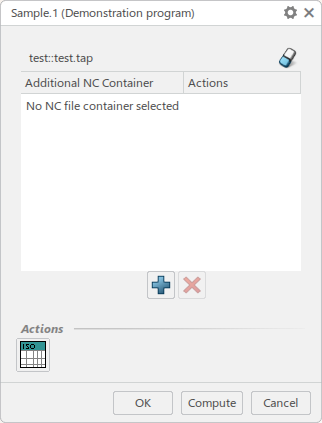
To override the MCD file associated to the current manufacturing program, right click on the manufacturing program and select “Edit” from the pop-up menu (or double-click on the program name in the PPR list). A dialog will appear as shown at right:
The MCD file shown at the top of the dialog. Click on the name to browse for a different MCD file to use.
The “Additional NC Container” selection is currently not used by Control Emulator. If simulating a program that includes one or more user subprograms, these sub-programs must be attached to the end of the main program MCD file. Controller resident subprograms are normally included in the Control Emulator itself and therefore need not be specified with the manufacturing process.
Tool and Workpiece Compensation Settings
Tool and workpiece compensation settings for the current manufacturing process are available in the Simulation Options and Manufacturing Process Definition dialogs respectively.
Cutter Compensation Management for Simulation
Tool compensation settings for the current manufacturing process are available from the Simulation Options dialog. Select the “NC Simulation Options” tab at the upper right of the dialog, and enable the “NC code simulation (with NMV license only)” checkbox. Finally, select the Tool Compensation Table icon at the lower left to bring up the “Cutter Compensation Management for Simulation” panel. This panel is used to define the tool compensation amounts that will be used during control emulation. These settings are saved with the manufacturing process. A sample panel is shown below:
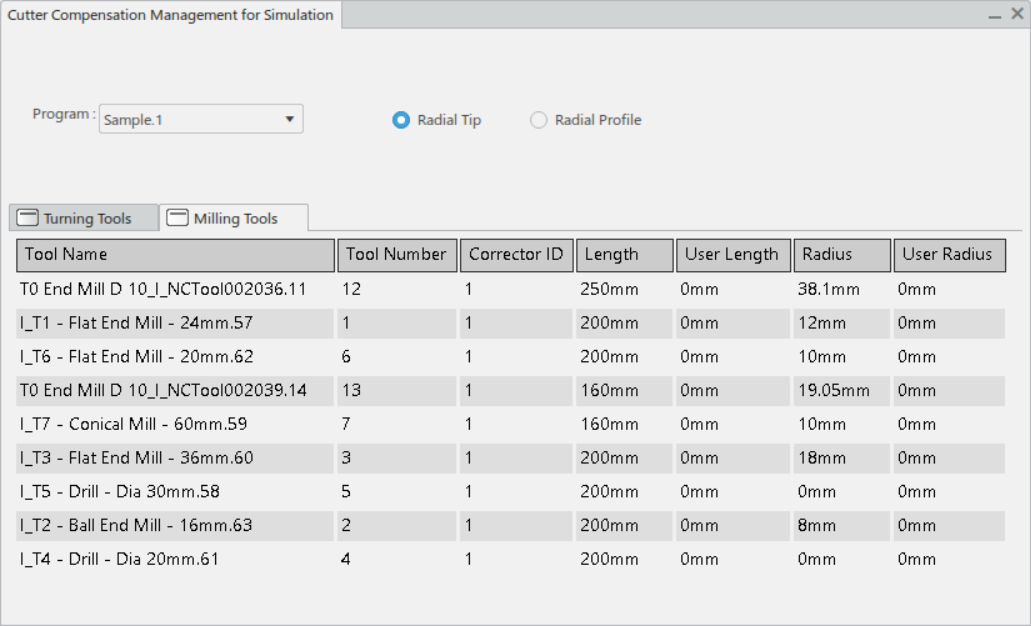
The Tool Name column lists all tools defined in the program, along with a Tool Number and a Corrector ID. The same tool number may have multiple entries, one for each different corrector ID used in the program, but the combination of tool number and corrector ID should be unique.
The Radius and Length columns list the nominal tool radius
and tool length as defined in the tool resource. The User radius
and User length columns list the values that will be used for
diameter and length compensation for the tool/
Select the “Radial Profile” radio button to have the control emulator perform tool length and diameter compensation using the tool dimension values listed in the User Length and User Radius columns. Select the “Radial Tip” radio button to zero those columns, which you would only do when using fixed tooling that is handled by the post-processor.
At the start of control emulation, CERUN reads the cutter
compensation table and stores the offset amounts, which it applies
when the appropriate tool length and/
The offset amounts are applied in the DELMIA model; they do not appear in the CERUN output trace window.
Define Workpiece Compensation
Workpiece compensation settings are available by first right clicking on the manufacturing program and selecting “Edit” from the pop-up menu (or double-clicking on the program name in the PPR list). This will bring up the “MCD File Selection Override”. Finally, select the “Define work offsets” icon at the lower left of that window to bring up the workpiece compensation panel shown below. This panel is used to define the workpiece compensation amounts that will be used during control emulation. These settings are saved with the manufacturing process.
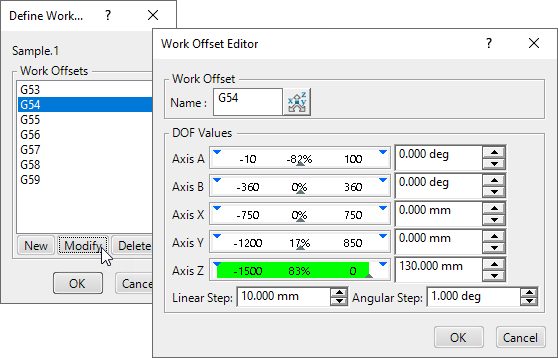
Work Offsets lists a series of workpiece compensation codes, one
per row, suitable for machines using G53-G59 series workpiece
compensation. If the CNC machine uses some other code (e.g.,
G505-G599) or code/
The Work Offset Editor is used to add or modify a work offset. Enter the work offset code in the Name field at the top (e.g., “G54.1 P01”). Then select the work offset value of each axis by moving the axis sliders, or by typing in the values, or by selecting the “Machining Axis System” icon to the right of the Name field and choosing a machine axis from the manufacturing program.
At the start of control emulation, CERUN reads the ISO code values as listed in this table and loads the axes offset values for each workpiece compensation code that it recognizes. The offset amounts are applied in the DELMIA model; they do not appear in the CERUN output trace window.
Using CERUN with 3DEXPERIENCE
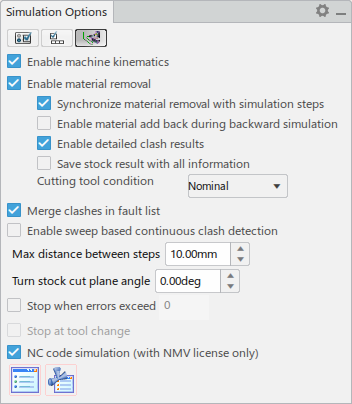
To enable the MCD Simulation, you must enable both the “Enable machine kinematics” and the “NC code simulation” checkboxes in the Simulation Options as shown at right. You must also have an MCD file associated with the manufacturing process (see “MCD File Selection Override”).
Once the above is done, to start the simulation, select the manufacturing process to be simulated in the PPR tree and press the Play button in the middle of the Compass at the top left of the main window.
NC code simulation simulates the motions of the machine and tool, showing the material removal process as it is expected to occur at the machine. Unlike a tool path simulation that is based on the aptsource file, machine simulation is based on the MCD file, takes into account the machine kinematics, and checks for collisions and over-travels during the simulation.
If the manufacturing process has been updated more recently than the MCD file, you will be warned that the current MCD file is not up to date. You can choose to simulate the MCD file as-is, or you can stop the simulation. See “Post-Processing with GENER” for instructions on generating an updated MCD.
See “Using CERUN with Virtual Machine” for a description of the CERUN interface and how to use it. When running with DELMIA, CERUN does not use the Virtual Machine simulation windows, because the simulation is shown in a separate step inside 3DEXPERIENCE after CERUN has completed.