(Ctrl Alt Q)
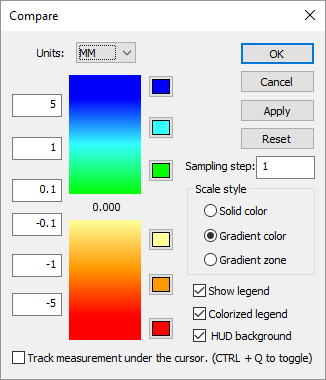
Activates the simulation Compare dialog, which defines various settings used when comparing the in-process stock against the related part. This function is only available with a Material Removal Simulation (MRS) license.
The association between a part and its corresponding in-process stock
is defined in the Simulation»
The comparison colorization settings are applied only to gouge and excess material, which must first be enabled by selecting one or both of the Boolean Overcut and Boolean Undercut filters.
The comparison is done by sampling the surface of the gouge and/
The settings of note on the Compare dialog are:
Units: Specifies the units of measure for all numeric values in the dialog.
Sampling step: Specifies the maximum distance along the surface between comparison measurements. Using a small value may greatly increase the computation time and complexity of the resulting colorized object.
Scale style: Defines how the excess and gouge distances will be colorized. Three excess and three gouge zones are available, at increasing offsets from the part. With the Solid color and Gradient color settings, each zone is represented by a single user definable color (using the color buttons to the right of the scale). With the Gradient zone setting, the inner two zones can individually be color graduated between two colors.
Track measurement…: If selected, the measured distance between stock and part under the cursor will be shown and dynamically updated as the cursor moves. You can also toggle this feature on and off using Ctrl Q.
Those surfaces on the colorized in-process stock that are neither
gouged or excess will not be shown, unless the
Simulation»