(Ctrl Alt C)
Activates the simulation “Stock splitting management” dialog, which provides functions to segment the in-process stock into multiple independent pieces as well as to remove uncut in-process stock fragments from the simulation. This function is only available with a Material Removal Simulation (MRS) license.
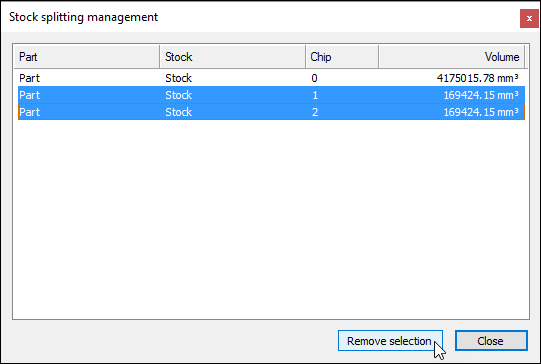
When the dialog is activated, an analysis is performed of the in-process stock remaining in the simulation. Each separate stock object including all disconnected stock chips (i.e., fragments) that remain in the simulation are listed one per line in the dialog. Each is identified by a combination of part name, stock component name and chip number. The volume of each is also listed (the volume units are as defined in the dialog MRS tab). Double-click on a column header to sort the data by that column. Double-click on the header again to reverse the sort order.
Stock chips selected in the dialog will be highlighted in the simulation window. Multiple stock chips can be selected in the dialog by using the Ctrl and Shift keys as normal. Pressing the Remove selection button will completely remove all selected stock chips from the simulation from the current time going forwards. Any stock chips that were removed will become visible only when moving Time Line backwards past the moment in time at which they were removed.
Stock chips can be automatically removed using the dialog, under the MRS tab's Automatic chip removal settings. Alternatively, disconnected stock chips can be removed programmatically using the Virtual Machine $FMSCHIP function.