License Manager
The Icam License Manager (IcamLM) utility provides tools to check license availability and perform other license-related tasks. The license manager may be started either from the Start menu or from the Icam Portal. In the descriptions that follow, keep in mind that when running both client and server on the same computer, the license manager can be run from either perspective depending on where it is started.
To start the license manager utility from a client computer Start menu, first locate the “Icam V27 x64” Start menu and then select “License Manager (CLIENT)”. To start the utility from the Icam portal, select the Tools pane and click on the “Icam License Manager (CLIENT)” tile or icon.
To start the license manager utility from the license server computer Start menu, first locate the “Icam License Server V27 x64” Start menu and then select “License Manager (SERVER)”.
You will see a window that looks similar to the one shown below.
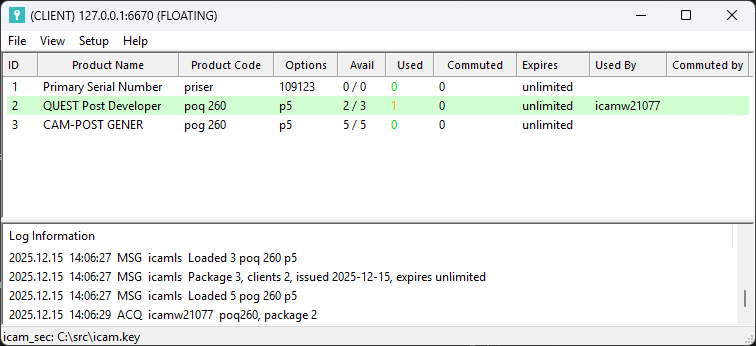
The title bar of the license manager window lists the server connection information.
Each line in the top half of the window lists a licensed product and its options, along with the maximum number of licenses that are available and the actual number in use. It also shows the hostname or IP address of each computer that has the license checked out.
- ID:
A sequential number identifying the license line. The list is initially sorted by this value. Click a column heading to sort by that column; click the same heading again to reverse the sort order.
- Product Name:
The descriptive name of the license.
- Product Code:
The license code name, typically a three-letter product code (e.g.,
pogfor Icam Post GENER) followed by a three-digit version code (e.g.,270for V27).- Options:
A comma-separated list of license options, which enable various optional features. The string
nilindicates that the license has no options.- Avail:
Lists the number of available licenses and the total number of licenses owned in available/
total format. - Used:
Indicates the total number of licenses checked out.
- Commuted:
Number of licenses that have been reserved for use on a specific client computer.
- Expires:
Indicates the last date on which the license can be used, in the form yyyy.mm.dd. The string
unlimitedindicates a license that does not expire.- Used By:
Lists the client names or IP addresses of the computers that currently have licenses checked out.
- Commuted by:
Lists the client names that currently have licenses commuted from the server.
The bottom half of the window traces the activity of the license server. From left to right this includes:
the date (yyyy.mm.dd) and time (24h) of the action
a three-letter code describing the action (see below)
the client computer hostname or IP address, or “icamlm” if it is a server-related action
the action data (e.g., the license that was checked out)
When the license manager starts, it shows the last 10 lines from the server log. This initial count of lines can be changed from the menu.
The license manager functions available on the menu depend on whether the manager is being run from the client or from the server.
License Manager (CLIENT)
The CLIENT version of the license manager is responsible for
establishing a connection to the Icam license server. Server
connection information is contained in the icam.key file, which is
either stored in the Icam application data directory (e.g.,
C:\) or located elsewhere,
identified using an icam_sec environment variable.
To locate the icam.key file, run the Icam Configuration utility and
check the Environment tab.
License Commuting: Starting with V26, licenses can be commuted for offline use. The following rules and limitations apply:
A license can be commuted for a maximum of 7 days.
At least 2 licenses must be available to commute one.
Only licenses of version 260 or later can be commuted.
To commute or return a commuted license, right-click on the license.
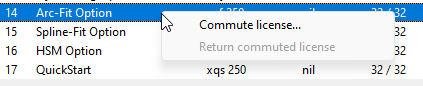
The following functions are available from the menu:
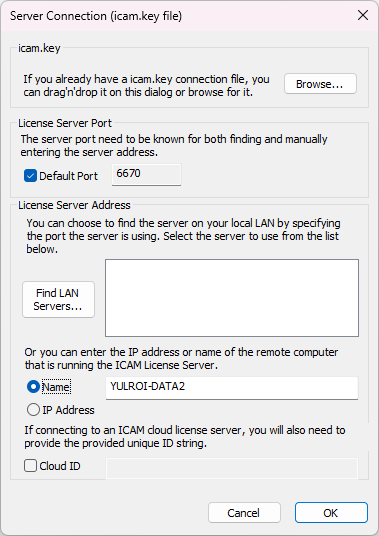
Server Connection: This dialog establishes a connection to an Icam floating license server. You can drag and drop an
icam.keyfile onto this dialog, or browse for the key file, to establish a connection to the server identified in the key file.You can set up the server connection manually, by entering the port number and name or IP address of the license server computer. A “Find LAN Servers” button will search for running Icam license servers on the same LAN only (i.e., it cannot find a server that is one or more network hops away). For cloud servers, you must also enter the cloud security ID string that was given to you by the Icam licensing department (keyfiles@icam.com), and your computer must have an Internet connection.
: A password can be set up to restrict access to changes to the client computer list from the license manager running on a client computer. To change it from the client license manager, you must enter the current password (see below).
: Lists the client computers that have connected to the license server and lets you remove obsolete ones to free up space for new clients (see below).
License Manager (SERVER)
The SERVER version of the license manager is responsible for
configuring Icam product licenses and license server options.
Icam product license information is contained in the
icamls.key file in the Icam server application data directory
(e.g., C:\).
The following functions are available from the menu:
: Use this function when a new
icamls.keyfile is received from Icam. You can drag and drop the new key file onto this dialog, or browse for the key file, or open the key file directory to facilitate copying the updated key file directly there.
:
Port: Set the primary port number to be used by the license server, which will become effective once all current licenses have been checked in, or following the next reboot or license server restart. Each client computer’s
icam.keylicense server connection file must be edited to specify the changed port number.Client Type: Specifies how the license server identifies clients. Clients may be recorded by computer name or by user name (including Windows user and/
or company domain). By default, the license server uses the client type specified in the license, which in most cases is the computer name. Selecting computer name or user name explicitly overrides the license-based setting.
: Defines the use, location and contents of a licensing activity log file. These changes become effective immediately.
Record license sever events in a log file?: If selected, the license server will log licensing events to the file listed at the bottom of the dialog. Select to see a list of event codes used in log-file messages. The event codes are also listed below.
Also include check-in/
out events in the log file?: If selected, the license server will include license check-out and check-in events as well. A check-out event (ACQ) occurs when a license is obtained when an Icam product starts running. A check-in event occurs when that license is returned when the product that is using it exits (RET), or when the product no longer appears to be running (RTO). Open: Select this button to open the directory containing the log file. Note that the log file path and name cannot be modified.
V: Select this button to view the log file.
: A password can be set up to restrict access to changes to the client computer list from the license manager running on a client computer. The current password is shown. If there is no password (the default) then the current password field will be empty. To create or change the password, enter the new password and repeat it, then press OK. To remove the current password, simply press OK without specifying a new password. Press Cancel to exit the dialog without changing the password.
: This dialog lists all client computers that have ever connected to the license server and checked out a license. The list of clients is maintained on a first-come, first-served basis. If all client spaces have been used, then new client computers cannot check out licenses. You can remove obsolete client computers from this list by selecting them and pressing the Remove Client button. When doing so from a client license manager, you must enter the password if one has been set up with the server license manager. Removing obsolete client computers from the list frees up space for new client computers.
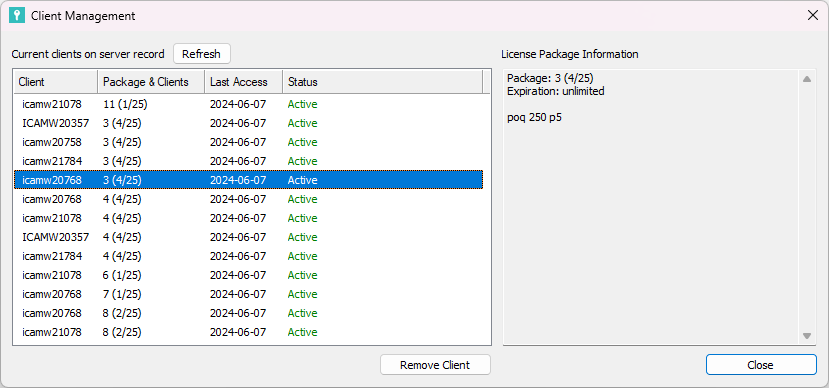
Note that once a client computer has been removed from the list, it is not eligible to check out licenses until the listed time limit has elapsed.
Common CLIENT/
The following functions are available from the Help menu:
: Lists the event codes that describe the individual server messages.
- INI:
License server started
- FIN:
License server stopped
- ERR:
License server startup error, for example, incorrect key file
- MSG:
License server informational message
- ACQ:
A license was successfully acquired (i.e., checked out)
- RET:
A license was successfully returned (i.e., checked in)
- RTO:
A license was reclaimed after a long period of inactivity (i.e., timeout)
- XNL:
License request denied because the requested product was not found in the list of available products (i.e., not licensed)
- XPX:
License request denied because the limit on the number of concurrent uses of the product has been reached (i.e., product limit)
- XUX:
License request denied because the limit on the number of different computers allowed to use the server has been reached (i.e., float limit)
- XHX:
License request denied because the computer requesting the license is beyond the limit of network hops permitted (i.e., hop limit)
- XTX:
License request denied because the termination date has been exceeded on a time-limited license
- XRQ:
License request denied because the request received by the server is wrong. Most likely the required GUID is incorrect
...: Shows the current version and build number of the IcamLM software.