License Server Installation
There are no license server installation requirements when using cloud licensing. Skip this section if you are using this license type. The section below describes the installation of the Icam license server (IcamLS) for floating licenses.
Note
You must have or be able to provide administrator
credentials to install the license server. This is because elevated
privileges are required to install software in the Program Files
area, and to setup the floating license server as a Windows
“service”.
Floating licenses permit the shared use of a restricted number of Icam licenses by a group of computers connected on a local area network. There are two components to a floating license, the “server” (which manages the distribution of licenses) and the “clients” (which is where the Icam Productivity Tools software is run). This section of the documentation describes the installation of the floating license server. “Icam Productivity Tools Installation” describes the installation of the Icam software on client computers. It is strongly recommended that the license server be installed first before later installing the Icam software bundle on client computers.
Installation of the license server (and other Icam software) is conditional upon your acceptance of the Icam End User License Agreement (EULA), which will be listed during the installation process.
Requirements
The general requirements for the license server are:
An Intel or compatible workstation running Windows 8.1, 10 or 11, or an Intel or compatible server running Windows Server 2012, 2012 R2, 2016, 2019, 2022 or 2025.
TCP port 6670 open (this can be changed during installation)
ICMPv4 enabled (If not purchasing a NO-HOP option)
The license server (the service responsible for checking licenses in and out) communicates with client computers using TCP port 6670. The license server also performs an ICMPv4 “ping” of the client computer whenever a license is checked out. The license manager (a utility run on the server or client computers to display license status) uses the same TCP port as the server. If using a firewall, you must open TCP port 6670, and enable ICMPv4. The default port number can be changed during the installation process.
The license server is locked to a specific computer via a host ID (ICAMID). You will have to identify one Windows computer in your network that will act as the license server. You should choose a file server, or other fairly robust computer, since the loss of the server will interrupt the use of Icam software. Icam restricts the use of floating licenses to a local area network (LAN) and generally requires that the server and client machines all coexist in the same facility. Computers that are separated by more than five network hops (routers or gateways) or that have latency exceeding 150 ms, are considered on wide area networks (WAN) and require “multi-hop” or “no-hop” licensing from Icam.
Measuring hops and latency
You can measure latency and the number of network hops between your
potential server computer and client computers by running an “Icam ID Security Utility”
(called icamid). This utility is also included with any Icam installation.
To check hops and latency from the server computer, run icamid and
select “More…”. Next, enter the client computer name or IP address.
Select “Hop-Count” to list the number of hops from the server to the
client, or “Ping !” to measure the latency. You can also use the Windows
command line tools "ping" and "tracert" to verify connection to the client.
If you have an Icam license server running, you can also check hops
and latency from the client computer to the server. Run icamid on
the client computer and select “More…”. Next, enter the license
server computer name or IP address followed by the communication port
number if it’s not the default 6670. Select “Server ?” to establish a
connection to the Icam license server. Finally, select “Test” to
verify the connection. The “Server Tests / Hop-Count” entry lists the
latency and number of hops from the server to the current computer
and indicates if either exceeds the licensed limit.
Installing from download link
Icam makes the latest release of the license server available for
download from the Internet. Clients under maintenance can contact
support@cgtech.com to obtain time-limited download links by return
email. These links provide access to the license server in Windows
Installer “msi” format.
Select icamls_270-yyww_win64.msi file to install the 64-bit
license server. The “yyww” in the file name is the 2 digit
year and 2 digit week number of the software release. Double-click on
the downloaded msi file (or right click the file and select “Install”)
to begin the installation.
New license server installation
Because Windows does not allow a service to be changed while it is running, the currently installed release of the license server, if running, will be automatically stopped during the installation of the new release. Applications that have licenses checked out will fail to reacquire their license after the license server is restarted. Icam recommends therefore that an upgrade of the license server only be done when licenses are not in use (i.e., not checked out).
The first step during the installation will request the location
where to install the software. The default installation directory is
“C:\”. Windows services must be
installed on a local physical drive. Do not install the license
server on a remote drive (i.e., one not physically connected to the
server computer) since the drive might not yet be mounted when
Windows tries to start the license server.
Next, you will be asked to optionally provide an administrator password which is used to secure licensing administration features like managing client list and commuting licenses.
Then, you will be asked for the TCP port number to be used by the
license server when communicating with other Icam software running on
client computers. The default port number 6670 should be used unless
another application on the server computer already uses that port. If
a different port is chosen, then this number must be specified in the
icam.key license server connection file on all client computers
(see “icam.key server connection file”).
Before the installation process continue, You will be given the choice to run the license update panel at the end of the installation. The license content is sent to you in an email body. The license update panel allow you to paste the license content and it will be installed as the current active license to be used by the server.
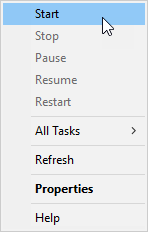
The installation procedure will stop the currently running
license server before the installation of the new one and will start
the new license server once the installation has completed. You can
also start and stop the license server manually. To do so, double-click
the “Services” Control Panel icon  , in the main services window
or in the “Administrative Tools” subdirectory, or select the Windows Start
button and search for “services”. When the Services panel appears, scan down
the Name column for a service named “Icam License Server”. Right-mouse on the
entry to access a pop-up menu giving start, stop and other choices as shown
in the image at right.
, in the main services window
or in the “Administrative Tools” subdirectory, or select the Windows Start
button and search for “services”. When the Services panel appears, scan down
the Name column for a service named “Icam License Server”. Right-mouse on the
entry to access a pop-up menu giving start, stop and other choices as shown
in the image at right.
Once reaching the installation complete dialog,
Once the installation is completed and you have pasted your license content using the
“Vericut Icam License Update”, run the “Icam License Manager” from
the “License Manager (SERVER)” Start menu to verify that your license
information has been correctly read from the icamls.key file and is
ready for use.
Uninstall the license server
To uninstall the license server, first locate the “Icam LS.build.n”
entry in the “Apps & features” Windows Settings
or the “Program and Features” Windows Control Panel, then select
“Uninstall”. Alternatively, run the original USB or downloaded
installation media and select “Remove”.
Uninstalling will stop the license server and then will completely
remove the license server from the computer, leaving behind log
files, key files and HKEY_LOCAL_MACHINE\ registry
entries.
Repair the license server
Icam recommends that the license server be uninstalled and then reinstalled instead of repaired.
Upgrade the license server
When installing a version of the license server more recent than the one currently installed, the installation program will indicate this and request permission to upgrade to the newer version.
Because Windows does not allow a service to be changed while it is running, the currently installed release of the license server, if running, will be automatically stopped during the installation of the new release. Applications that have licenses checked out will fail to reacquire their license after the license server is restarted. Icam recommends therefore that an upgrade of the license server only be done when licenses are not in use (i.e., not checked out).
During an upgrade, the installation program will stop the license server, install the newer release of the license server into the same directory as the current one and then start the license server up again using the current key file.
Note
It is not possible to downgrade to an earlier (i.e., older) release without first uninstalling the current version of the license server.