Licensing Overview
QUEST and other Icam products require a valid license to run. Each license identifies an Icam program or option, the number of simultaneous uses allowed of the license, and the date range in which the license is active. Licenses are managed by a separate license server program developed by Icam (called IcamLS) that is constantly running in the background. When an Icam product is started, it communicates over your network with the license server program and checks out the appropriate licenses, making them unavailable for anyone else. This is called a “check-out”. While the product is running, it periodically tells the license server that the checked-out licenses are still in use. This is called a “heartbeat”. When the product exits, it tells the license server to check the licenses back in so they are once again available to everyone else. This is called a “check-in”.
Icam supports Cloud and Local license servers. With cloud licenses, the Icam license server program runs in a computer managed by Icam on the Internet. With local licenses, the Icam license server program runs on a computer within your local network. Local server installation is described here.
Icam licensing always support Floating. Floating licenses are
shared by a group of computers on your local network, with the Icam
license server typically running on a separate computer that is
ideally up 24/
There are three limits placed on licenses:
The first limit is the range of dates in which the license is valid. The start date is typically the date on which the license is issued, so in reality you are only concerned with the end date of the license. Leased licenses for example have an end date that matches the lease end date. A “permanent” license has the string “unlimited” as an end date, meaning not limited.
The second limit is the number of copies of software that are available for simultaneous use. If for example two copies of Icam Post are licensed, then at any given time, no more than two NC programs can be post-processed. You must exit the Icam Post GENER program to free up the license.
The third limit is the number of client computers that are entitled to check out licenses. For example, a 2/
10 license permits up to ten different computers to share two Icam Post GENER licenses. The license server log file lists each new computer as it is encountered on a first come / first served basis. Once this limit is reached, new computers (i.e., those not already on the list) will be refused access.
Icam provides a License Manager (IcamLM) utility that can be used to view license availability and to manage the group of client computers that share floating and cloud licenses. This utility can be run on any computer where Icam software is installed. The license manager utility is described here.
icam.key server connection file
Every computer that runs Icam products must have an icam.key file
that identifies the connection to the Icam license server. This key
file generally resides in the Icam Productivity Tools application
data directory (e.g., C:\).
With cloud licenses, the
icam.keyfile will be emailed to you by Icam’s licensing department from keyfiles@icam.com. This file contains the web address, port number and security identifier that uniquely identify your cloud license server. This key file must be selected during the Icam Productivity Tools installation process. The installer will confirm that there is a good connection to the license server.With floating licenses, the
icam.keyfile will be automatically generated for you during the Icam Productivity Tools installation process. During the installation you must indicate the hostname or IP address of the Icam server computer, and the port number used for communications. The installer will confirm that there is a good connection to the license server and create anicam.keyfile with the connection information.
The icam.key file is readable, containing a single line that
identifies the hostname or IP address of the server computer. The
server identification optionally includes the port number used for
communications with the server (this defaults to 6670 if not
specified). For cloud licenses, a unique security string is appended
that protects your server from being used by anyone else. Some
examples of key files follow.
A key file for a local floating server with IP address 192.168.1.2 using default port 6670:
000 192.168.1.2
A key file for a local floating server with hostname “myserver” using port 55100:
000 myserver:55100
A key file for a node-locked license will generally appear as follows:
000 127.0.0.1:6670
A key file for a cloud license would appear as follows:
005 35.238.180.21:50000 d30bc6da-068b-4d59-9eff-16449530bbee
If the key file is not named icam.key or if it is not placed in the
application data directory, you must create an icam_sec environment
variable that defines the path and filename of the key file.
icamls.key server license file
License servers must have an icamls.key
file. This file lists the Icam products that are available, the
simultaneous usage count of each, the start date on which the
licenses become available and the end date after which they expire
(licenses with an end date of “unlimited” do not expire). This key
file content will be emailed to you by Vericut’s licensing department from
key.files@cgtech.com. The key file
generally resides in the Icam License Server application data
directory (e.g., C:\).
To easily update the icamls.key file, use the “Update Server License” start menu
option to launch a panel where you can paste the license content from the email.
With cloud licenses, you do not receive an
icamls.keyfile since Icam manages the license server for you on a computer in the cloud.With floating licenses, the system administrator must choose a computer in the corporate network that will run the license server. This server computer will share out the Icam product licenses to other computers (called “clients”) in the network that need to use the Icam software. The
icamls.keyfile must be selected during the license server installation process (described in “License Server Installation”). To simplify Icam product installation, install the license server first and then install Icam Productivity Tools on the client computers afterwards.
Node-locked and floating license servers are licensed by Icam to run
on a specific computer. For a node-locked license, that computer is
the same one on which other Icam software is to be run. With a
floating license, that computer is the one in your network that will
service license requests. Icam licensing uses a unique system ID to
identify the computer on which the license server will run. You can
obtain this ID by running an “Icam ID Security Utility” (called
icamid). This utility is also included with any Icam installation.
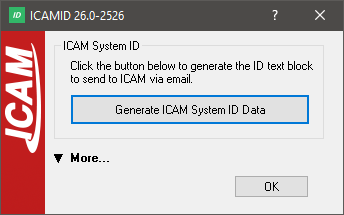
To get the Icam ID of a computer, run the icamid utility
and press the large “Generate Icam System ID Data” button. This will
create a file named icamid.txt in your Documents folder. Attach
this text file to an email reply back to Icam. License generation is
not automatic, so there can be a delay of up to one business day in
receiving your icamls.key file.
The IcamID utility is described here.