Icam Productivity Tools Installation
A typical installation includes a suite containing Icam Productivity Tools and Icam Integration Tools.
Icam Productivity Tools include the Icam Post post-processor, Virtual Machine simulation and Control Emulator MCD based verification products, as well as other utility software components.
Icam Integration Tools are software components that integrate Icam products with various CAD/
CAM systems, simplifying post-processing and simulation. Node-locked license installations also include the installation of a local license server that manages the node-locked license.
Note
You must have or be able to provide administrator
credentials to install Icam Productivity Tools. This is because elevated privileges
are required to install software in the Program Files directory, and to
setup the node-locked license server as a Windows “service”.
Installation of Icam software is conditional upon your acceptance of the Icam End User License Agreement (EULA), which will be shown during the installation.
Requirements
Icam products are supported on Intel or compatible workstations running Windows 10, 11 or equivalent server editions.
You must have or be able to provide administrator credentials to
install Icam products for all users on the target computer.
The Windows UAC user account control system
will prompt for an Administrator login and password during
installation. This is because Windows requires elevated privileges to
update the Windows Registry and install files to the “Program Files”
and other system directories.
Once installed, Icam products do not require administrator rights to be used.
Installing from download link
Icam makes the latest software release available for download from
the Internet. Clients under maintenance can contact support@cgtech.com
to obtain time-limited download links by return email. These links
provide access to the software in Windows Installer Bundle “exe”
format. Select the icam_270-yyww_win64.exe file to install the 64-bit
software. The “yyww” in the file name is the 2 digit year
and 2 digit week number of the software release. Double-click on the
downloaded exe file (or right click the file and select “Install”) to
begin the installation.
New Icam Productivity Tools installation
The first step during a new installation is to determine the
installation scope. You will be given the choice to install the
software just for you (i.e., the current user) or to install the
software for all users of the computer (the default). Your
response will only affect where the application data is located; the
software is always installed in the Program Files area (although you
are given the choice of where to install the software). Application
data are those components of the product that require read and write
access, which therefore cannot be installed in the Program Files area
since Windows UAC enabled accounts require Administrator rights to
modify Program Files.
Application data includes:
The
icam.keylicense server connection fileThe
dwords.datdefault keywords fileThe
ICAM.DEFand other configuration filesA
cachedirectory containing temporary files used by Virtual MachineA
kitdirectory containing new and customized CAM interface kitsA
macrodirectory containing shared external macro filesA
samplesdirectory containing various samples that may be of interestA
workdirectory containing thecampost.dbfdatabaseAny custom files included with the installation
If installing for all users, application data files will be located
in the Windows “C:\” common application data
profile. If installing only for the current user, application data
files will be located in the user’s
“C:\” roaming profile.
Windows by default hides these directories from view.
The next step during the installation will request the location where
to install the software. The default is the Windows “C:\” common installation directory.
Next panel will request to add a firewall rule to allow the license server to ping the computer via the ICMPv4 protocol.
You will then be given a choice of setup type:
Select the Typical button to install only licensed Icam software products. You will then be given the following choices:
“CLOUD: I have received an Icam CLOUD connection file (“icam.key”) for this new release of the software and the key file is accessible from this computer.”
Browse for and select the
icam.keylicense server connection file sent to you by Icam’s licensing department. The installer will verify your connection to the cloud license server and install only those software components that you are licensed to use.A copy of the
icam.keylicense key file will be created by the installer in the Icam product application data directory (i.e.,C:\). TheProgramData\ ICAM\ 270\ icam.key icam.keyfile contains a single line that identifies the cloud license server, its port number and your unique cloud security string (see “icam.key server connection file”).“FLOATING: I have an Icam license server up and running with my latest license information and the server is on the same network as this computer.”
This process is called a “client” installation, since it installs Icam software on a client computer that is “served” by the license server computer. The same computer can be used as both a client and a server. Always install or upgrade the license server first before installing or upgrading any other Icam software on a client computer.
The installer will communicate with the Icam license server to determine the list of components to install. Therefore, it is important that an Icam license server at the same or higher numbered version be running and accessible from the client computer before beginning a client installation.
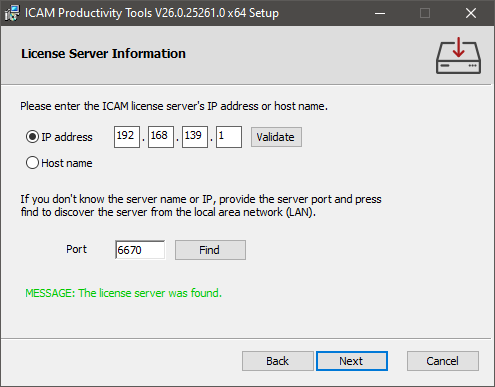
The installer will first check the LAN (local area network) for a running Icam license server using default port. The IP address of the license server will then be listed in the License Server Information dialog (shown at right). Press Next to continue the installation.
The IP address field will be blank and a diagnostic message will be listed if a license server cannot be found, which would be the case if the license server is using a port other than the 6670 default. Enter the port number specified during license server installation and press Find. The server computer will also not be found if it is one or more network hops away from the client computer. In this case, also enter either the IP address or the host name of the server computer and press Validate. Once a license server has been found, press Next to continue the installation.
You will not be able to advance past this step in the installation procedure until an Icam license server is found and has replied back with the components to install. If you are stuck, select the Back button and choose a different installation method, or select Cancel to abort the installation.
An
icam.keylicense server connection file will be created in the Icam product application data directory (i.e.,C:\). TheProgramData\ ICAM\ 270\ icam.key icam.keyfile contains a single line that identifies the selected floating license server and its port number (see “icam.key server connection file”).
Select the Custom button to select the components to install. Note that once the custom installation has finished, you must create an
icam.keylicense server connection file in the application data directory. This key file contains a single line that identifies the license server and port number (see “icam.key server connection file”).Quest Developers: The Icam Post, Virtual Machine and Control Emulator Development component. This is used to create post-processors, control emulators and models.
Icam Post Gener: The post-processor run-time component. This is used to convert CAM generated CLDATA to machine control data (MCD) that can be run on the CNC machine.
Control Emulator CeRun: The control emulator run-time component. This is used to emulate a CNC machine by reading and processing the MCD.
Regression Test Utility: This is a utility to build your own Icam Post and Vericut regression tests.
Virtual Machine: This is the machine simulation component, used to visualize the manufacturing process. It is integrated with GENER and CERUN.
CAM-APT-SURF: This is an APT-IV processor.
Security Utilities: This component contains the IcamID program, which is used both to identify your computer for licensing purposes and to test the floating license server status; and the IcamLM Floating License Manager program that is used to view the current server licensing status (e.g., licenses available, checked out and by whom).
Select the Complete button to install all available components (as listed above). As with a Custom installation, once the installation has finished, you must create an
icam.keylicense server connection file to the application data directory.
You will then be given the following installation options:
Add shortcuts to the desktop: If selected, a Portal V27 shortcut will be placed on your desktop to simplify the start of the Icam Portal application. This single desktop icon replaces the multiple Config, Quest, Gener, CeRun and PSE icons used with older releases.
Associate database file extensions (shell integration): If selected, a Windows Explorer add-on will be installed that enables you to see a tool-tip summary of the contents of any Icam database under the Windows cursor.
Migrate your data and settings from an earlier version: If selected, Icam application data from the prior release (such as your production database and customized CAM interface kits) will be copied to the application data area of the new release.
Once the installation has been completed, you are ready to use Icam Productivity Tools.
Uninstall Icam Productivity Tools
Icam Productivity Tools can be uninstalled from the “Apps & features” Windows Settings or the “Program and Features” Windows Control Panel. Two entries will appear for each build of the software that has been installed:
Icam Productivity Tools V27.build.nIcam Integration Tools V27.build.n
The Icam Productivity Tools entry includes the product components as earlier listed in the Custom installation. Select the entry and choose “Uninstall” to remove the productivity tools. Application data will not be removed.
The Icam Integration Tools entry includes all software components used in integrating Icam products the CAM system. This includes the CAM Integration utility, Manufacturing Extractors used by Virtual Machine and CAM Interface Kits used by Icam Post. Select the entry and choose “Uninstall” to remove the integration tools. Custom created interface kits will not be removed.
Modify or Repair Icam Productivity Tools
Run the original USB or downloaded installation media to modify, repair or remove the installation. The modify and repair functions are not available from the “Apps & features” Windows Settings or the “Program and Features” Windows Control Panel. If the installation media is in Windows executable “exe” format, you must first select “Install” to run the embedded Icam Productivity Tools and Icam Integration Tools Windows “msi” installers in sequence.
Change brings up a panel that you lets you individually add or remove product components as earlier listed in the Custom installation. This feature is available for Icam Productivity Tools, but not for Icam Integration Tools.
Repair will replace missing files in the installation, but will not replace a file that has been modified after it was installed. We recommend you first uninstall and then reinstall to fully repair an installation that may have been corrupted.
Remove will remove the products that were installed. Application data will not be removed unless specifically requested. Carefully consider your reply when asked if application data should also be removed, since an affirmative response will delete your Icam Productivity Tools database and any customized interface kits.
Upgrade Icam Productivity Tools Installation
When installing a version of Icam Productivity Tools more recent than the one currently installed, the installation program will indicate this and request permission to upgrade to the newer version. During an upgrade, the installation program will install the newer release of Icam Productivity Tools into the same directory as the current one.
Because Windows does not allow an executable file to be changed while it is running, you should first verify that no copies of Icam software are running on your computer before upgrading (the installation will pause if it detects that files being replaced are in use).
Once the installation has been completed, you are ready to use Icam Productivity Tools.
Note
It is not possible to downgrade to an earlier (i.e., older) release without first uninstalling the current version of Icam Productivity Tools.