CAM Integration Setup
Icam Post integrates to a variety of CAM systems through the use of the CAM Integration setup utility, which provides the means to associate V27 and other versions of Icam Post with CAM systems for which integration is available. Once this association is made, Icam post-processors can then be selected from within the CAM system when post-processing. Also, Icam manufacturing “extractors” can be run from within the CAM system to obtain manufacturing data (such as tools, holders, parts and fixtures) to be used with Virtual Machine simulation.
The CAM Integration setup utility can be started either from the Windows Start menu or from the Icam Portal.
To start the utility from the Icam Portal, select the Tools pane and click on the “CAM System Integration Utility” tile or icon. You can also right-mouse on the Icam Portal icon in the Windows notification area and select “INTEGRATION” from the Portal menu.
To start the utility from the Start menu, first locate the “Icam V27 x64” app, then select “CAM Integration”.
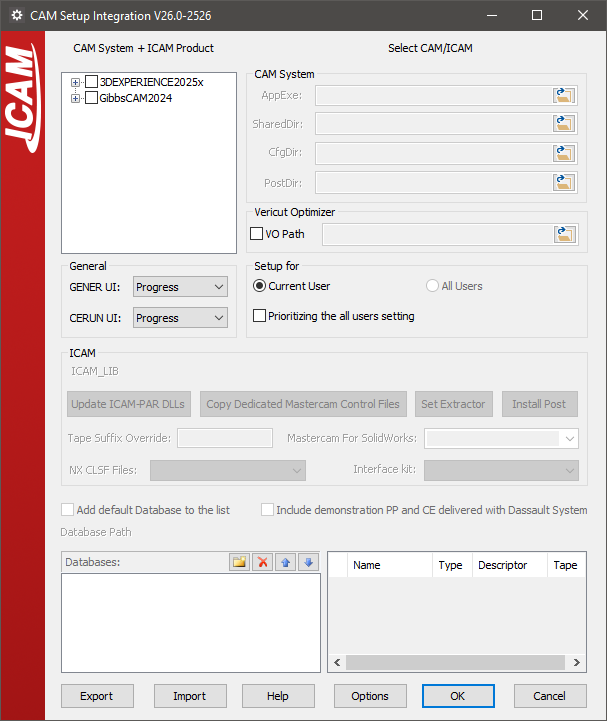
The utility will appear as shown below (depending on what CAM systems are installed on your computer):
CAM Selection
The setup utility will search for and list all of the supported CAM systems installed on the computer in the “CAM System + Icam Product” tree, on the left of the dialog. First select the checkbox beside a CAM system interface name, then expand that entry to list the Icam product versions available for it, and select the 270 checkbox to associate the current V27 release with that CAM system. The setup utility will then show the integration settings required for the selected CAM system in the panel to the right of the tree, along with the build number and installation directory of the CAM system.
The following CAM interfaces were available at the time of publication:
3DEXPERIENCE 2015x–2025x
CATIA V5R21, V5-6R2012–2025
Cimatron 2025
Creo 7-11
FeatureCAM 2017–2025
Fusion 360 2021-2025
GibbsCAM 2024–2026
Mastercam 2019–2025
NX12, 1847, 1872, 1899, 1926, 1953, 1980, 2007, 2206-2412
PowerMill 2021–2025
If a supported CAM system is known to be installed on the computer
but does not appear in the list, then select the Options button,
clear the “Show only Installed CAD/
Clear the checkbox beside a CAM system name to remove the association between it and Icam products. Information previously entered will be remembered and reapplied should the checkbox be re-enabled at some later time. Similarly you can clear the checkbox beside an Icam product version to remove the association between that Icam version and the CAM system.
The Options dialog “Show only integrated Icam and CAM products” checkbox can be selected to list only those CAM systems that currently have an association with an Icam product. The same dialog also provides the “Enable Tooltip Help” checkbox, and the “Output Log File for Extractor” checkbox together with the path to write the log file to.
The OK button exits the setup utility, saving all changes. The Cancel button exits the setup utility, discarding any changes that have not yet been committed. Note that actions carried out by the buttons described below, as well as the “Prioritizing the all users setting” checkbox and the Vericut Optimizer path, take effect immediately and are not reverted by Cancel. The Help button opens a dialog summarizing what the utility does.
CAM integration settings are stored under the HKEY_CURRENT_USER registry when “Current User” is selected, and under the HKEY_LOCAL_MACHINE registry when “All Users” is selected; see Setup for … User below. Select the Export button to save these settings to a ZIP file. The Import button can be used to restore previously saved CAM integration settings, or to copy them to another computer. CAM and Icam software installation file paths must be the same when exporting and importing saved settings between computers.
CAM Integration
Selecting a CAM system in the tree shows the integration settings required for that CAM system in the panel to the right of the tree. An example is shown below.
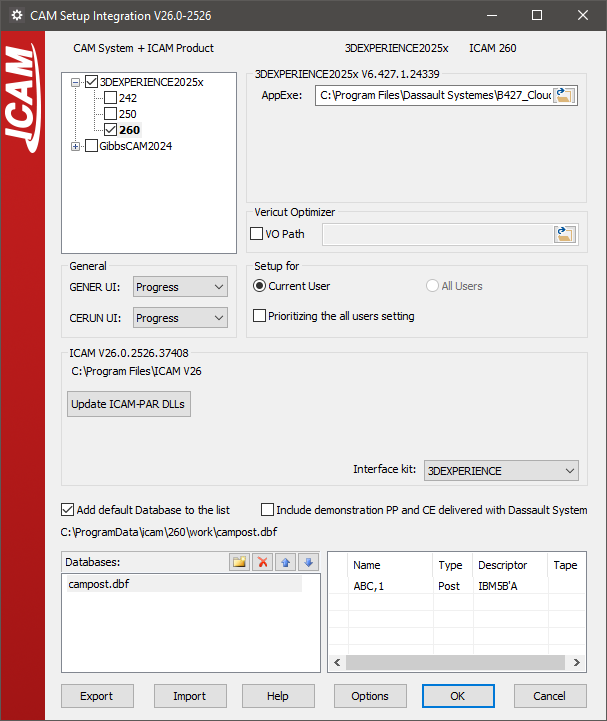
Expanding the CAM system name in the tree reveals one or more checkboxes, one for each version of an Icam product that can be associated with the selected CAM system. For example, select the 270 checkbox to integrate V27 with the CAM system. Clear the checkbox to remove the association of V27 with the CAM system.
The following settings are common to all CAM systems:
GENER UI and CERUN UI: These select the default interface to use when running the post-processor or control emulator started from within the CAM system. The choices are Full, Progress, Minimize and Background.
Setup for Current User vs. All Users: These control where setup information will be stored in the Windows Registry. Individual user setup takes precedence over all-user setup. Select the “Prioritizing the all users setting” checkbox to use the all-users settings instead, without losing the current user ones. This checkbox is only enabled when integration settings exist for both the current user and all users.
AppExe: This selects the main executable file or library for the CAM system. The setup utility uses this information to determine the build release number and installation directory of the CAM system. This field will have already been set if the CAM system was automatically detected. Additional directory path information is required for some CAM systems, and is supplied through the SharedDir, CfgDir and PostDir fields beside it. For GibbsCAM, SharedDir is replaced by a plug-ins directory.
Vericut Optimizer: Select the “VO Path” checkbox to enable the adjacent field, then enter or browse for the VERICUT Optimizer location. This setting is written to the registry as soon as it is changed.
Interface kit: This setting selects the interface kit to use during post-processing.
Add default Database to the list: Select this checkbox to include the default Icam database for the current Icam version in the list of databases below it. Multiple databases can be integrated, by browsing for each database and adding them to the list. The Delete, Up and Down buttons can be used to manage the list of databases and the order in which the CAM system will list the available post-processors. Select a database to see a list of the objects it contains, given by Name, Type, Descriptor and Tape.
Depending on the CAM system, varying degrees of integration are available to allow selection of an Icam post-processor or activation of an Icam Manufacturing Extractor from within the CAM system.
CATIA and 3DEXPERIENCE: The post-processors and control emulators in the database will be available for selection in the settings. If the “Include demonstration…” checkbox is enabled, then demonstration post-processors and control emulators will also be available for selection. If the post-processors are not listed in the CAM system as expected, then a possible solution is to update the DLLs that manage the interface by selecting the Update ICAM-PAR DLLs button. Icam provides up-to-date copies of these DLL’s in the Icam installation directory, which can be used if the currently installed DLL’s are out of date. This button will be disabled if the DLLs are already up-to-date.
The PPTable (Default) button copies the Icam metric and inch PP tables to the CATIA or 3DEXPERIENCE directory. The PPTable (Custom)… button browses for a custom PP table file and copies that instead.
To post-process, right-mouse on a manufacturing process and select “Generate NC Output Interactively”. The Execute button will run Icam Post GENER using the post-processor name as selected above. The “NC Code” tab provides a drop-down where a different post-processor can be selected if necessary. The “More Options” checkbox will run the launch panel instead of the “GENER UI” interface type selected in the setup utility.
To simulate NC code, right-mouse on a manufacturing process and select “Simulate Machine using NC Code”. This will run Control Emulator using the “CERUN UI” interface type selected in the setup utility. Once completed, a “Process Simulation” dialog will appear in CATIA and 3DEXPERIENCE providing control over the simulation.
Creo: First, select the Icam Productivity Tools database file using the browser button in the “Databases” area. The post-processors contained in the selected database will appear in the adjacent area. Select the post-processors required to be made available in Creo and click the Install Post button.
The Set Extractor button must be used if Icam Virtual Machine needs to also be integrated.
Both buttons update the Creo
protk.deffile, which must be registered using the Creo Auxiliary Applications function. New toolbar options labeled “Icam Post” and “Icam Extractor” will then become available when editing Creo NC manufacturing assemblies.FeatureCAM: Currently, you cannot directly control the post-processor and control emulator from within FeatureCAM. Instead, you can use the Icam manufacturing extractor to post-process or control emulate the manufacturing process currently opened in FeatureCAM.
To do so, first run CAM integration for the appropriate version of FeatureCAM, which sets the Icam Productivity Tools database that you can use with the Icam Extractor. Next, open FeatureCAM, and in the Add-Ins tab Add-Ins section, select the “Manage…” button. Browse to select “
integration\” from the Icam product installation directory. Re-open FeatureCAM and you can now access the “IcamMfgExtractor” Add-In on the guiitalic:Macros section of the Add-Ins tab. Select this button to run the Icam manufacturing extractor, which you can use to extract data out of FeatureCAM for post-processing and simulation.FeatureCAM\ Win64\ CPlugin.dll Mastercam: First select the post-processors to be available from Mastercam and then press the “Install Post” button, which creates PST entries for the selected posts. For an Icam post-processor to be usable from within Mastercam, it is recommended that you first create the Machine Definition and then create the Control Definition that will identify the PST file. This Machine and Control combination can then be used to identify the post-processor to use for an NC program. Use the G1 button to start post-processing.
The “Copy Dedicated Mastercam Control Files” button copies the contents of a selected directory to the Mastercam Shared directory. Use this to install in Mastercam the custom dedicated post-processor Machine and Control definitions supplied by Icam Technical Support.
The “Copy Icam DLL” button copies the Icam interface DLL required by the detected Mastercam release into the Mastercam application folder. It is enabled only when that copy is needed.
The “Set Extractor” button creates an “IcamExtractor.FT” file in the Mastercam Chook directory, which can then be used to create an “IcamExtractor” toolbar button in the Mastercam standard toolbar (this is done automatically in Mastercam for SolidWorks). Select the IcamExtractor button to run the Icam manufacturing extractor.
NX: First, select the CLSF template that you would like to use from the “NX CLSF Files” drop down list. In addition to the standard NX CLSF templates, Icam provides a custom CLSF template, ICAMCLSF, which creates APT-like cls files.
Next, select the post-processors that should be available for selection in NX, and press the “Install Post” button. This will first make the CLSF template available in the NX “CLSF Output” dialog and then make the selected post-processors available for selection in the NX “Postprocess” dialog.
PowerMill: Currently, you cannot directly control the post-processor and control emulator from within PowerMill. Instead, you can use the Icam manufacturing extractor to post-process or control emulate the manufacturing process currently opened in PowerMill.
To do so, first run CAM integration for the appropriate version of PowerMill, which makes the Icam Plugin available in PowerMill. Next, open PowerMill and you can access the Icam Plugin in the Vertical Plugin Window. Select the “Start Extractor” button to run the Icam manufacturing extractor, which you can use to extract data out of PowerMill for post-processing and simulation.