The Icam Configuration Utility
The Icam Configuration Utility is a graphical interface used to view
and edit the ICAM.DEF file, which contains parameter definitions that
control the operation of Icam software.
See “The ICAM.DEF File” for a complete description of the DEF file.
Configuration settings can be used, for example, to define the default units of operation (inch vs. metric), the language of operation (English, French…), the CAM system CLDATA format, the QUEST and GENER listing file format (text or HTML), and many other settings.
Configuration Storage and Application Data
Note
User and system application data directories are hidden from view in Windows Explorer by default. This can be controlled via the “Show hidden files and folders” advanced View settings.
With V18 and earlier releases of Icam software, the ICAM.DEF file and
other configuration information was normally stored in the main
installation directory.
On Windows Vista and later systems, the “Program Files” directory is
not writable by non-administrative users. Therefore, configuration
data for V19 and later systems is installed by default in either the
main “ProgramData” directory or in the user’s roaming application
data directory, depending on the choice made during installation to
install the software “for all users” of the computer or to install
“just for you”.
The location of the configuration ICAM.DEF file defines the root
application data directory. Icam software will look to this root
application directory, called icam_appdata,
when searching for the following:
The
icam.keylicense server connection file (unless using an icam_sec environment variable)The
dwords.datdefault keywords fileA
cachedirectory containing temporary files used by Virtual MachineA
kitdirectory containing new and customized CAM interface kits used by Icam Post GENERA
macrodirectory containing shared external macro filesA
workdirectory containing thecampost.dbfdatabase
The root application data directory can also be maintained on a network drive to be shared by multiple users, by moving the as-installed configuration data to a directory of your choice.
Icam software uses the following search paths, in the order listed, to
locate the ICAM.DEF file at the start of processing:
The directory identified by the icam_appdata_270 environment variable
The directory identified by the icam_appdata environment variable
The user’s application data
Roaming\directoryICAM\ 270 The user’s application data
Local\directoryICAM\ 270 The
ProgramData\directoryICAM\ 270 The icam_lib software installation directory
If an ICAM.DEF file is not found in the search path, then the
application data directory is assumed to be the same as the
installation directory (i.e., icam_lib) and all
configuration settings take their default value.
If an ICAM.DEF file is found and the file contains a
“let ICAM_APPDATA=directory_path” definition, then the ICAM.DEF file
at that location is recursively checked for further ICAM_APPDATA
definitions.
Starting CONFIG
From the Desktop
The Icam Configuration Utility may be started either from the Start menu or from the Icam Portal.
To start the utility from the Start menu, first locate the “Icam V27 x64” Start menu, then select “Config V27”. To start the utility from the portal, select the Tools pane and click on the “Icam Configuration Utility” tile or icon.
From a Command Prompt
The Icam Configuration Utility can be executed from the Windows
command prompt by first setting the current working directory to the
Icam Productivity Tools V27 installation directory (i.e., C:\)
and then typing the following command:

The configuration utility does not accept command line parameters.
From QUEST, GENER or CERUN
The Icam Configuration Utility can be executed by selecting from the QUEST, GENER or CERUN menu bar. You must restart the QUEST, GENER or CERUN application to take any configuration changes into account.
Using the Configuration Utility
When started, the configuration utility will appear as shown below. Configuration settings are grouped into the following categories.
General lists settings that are common to all Icam software modules.
QUEST lists settings that are specific to QUEST.
GENER lists settings that are specific to GENER.
CAM Interface lists settings related to the input processing of CLDATA by GENER.
Output lists settings controlling output file naming and formatting.
Tape && DNC lists settings controlling the output formatting of MCD by GENER.
Two additional sections are also included:
Environment is a read-only list of all Icam environment variable settings. An Open button starts File Explorer with focus on the directory listed by the variable. Environment variables can be changed from the System Control Panel (see “Environment Variables”).
All Entries Settings provides an alphabetical list of all configuration settings. Settings can be changed from this section by first selecting the entry and then typing a valid value.
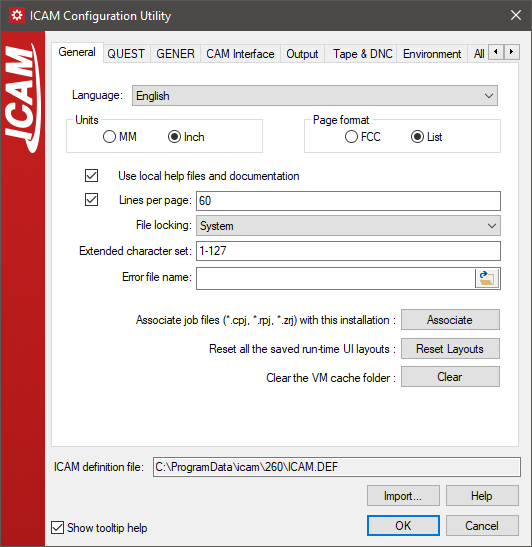
The Configuration Utility
The following controls are available:
ICAM.DEF file was found (or
will be created by default).The configuration settings can be saved to an HTML log file for reference purposes by clicking on the title-bar icon and selecting “Save to HTML…” from the drop-down menu.
General Settings
This panel lists settings that are common to all Icam software modules.
Language: Specifies the name of the default language to use for all text output. (LANGUAGE)
Units: Specifies the default primary unit of measure to be used by QUEST when developing a new post-processor, control emulator or Virtual Machine model. It also specifies the default CLDATA units at the start of post-processing before the first UNITS command or in the absence of a UNITS command. (UNITS)
Page format: Defines the output page format for QUEST and GENER output listings. CERUN uses the “list” page format control exclusively. (PAGE_FORMAT)
Use local help files and documentation: Select this check-box to use online help and user documentation installed locally on the computer. Clear this check-box to use the remote https:/
/ help.icam.com/ server. Lines per page: Specifies the number of lines per page on QUEST and GENER output listings. CERUN does not paginate its listing file. (LINES_PER_PAGE)
File locking: Specifies how the Icam Productivity Tools database is locked when it is being written to. (FILE_LOCKS)
Extended character set: Specifies the valid range of characters permitted in an aptsource text string during GENER post-processing. (EXTENDED_CHARS)
Error file name: Specifies the path and name of a custom diagnostic message file. (ERFILE)
Associate: Use this button to associate JOB and review files extension to this version of Icam Productivity Tools. The file extensions being associated are “.CPJ”, “.RPJ” and “.ZRJ”. This will change the current user windows registry and does not affect the Icam DEF file.
Reset Layouts: Use this button to clear all the run-time UI saved window layouts for the current user. This will change the current user windows registry and does not affect the Icam DEF file.
Clear: Use this button to clear the VM
cachefolder. The VM cache is used to speed up the loading of some objects. This does not affect the Icam DEF file. Icam Support might ask you to clear the cache when diagnosing unexpected VM behavior.
QUEST Settings
This panel lists settings that are specific to QUEST.
User defined questions: Specifies the full path and file name of a user-defined questions file. (USER_QUESTIONS)
GENER Settings
This panel lists settings that are specific to GENER. They are not used by CERUN.
Plot Format Type: Specifies the output format of back-plot data generated by GENER. (PLOT_TYPE)
Plot Data: Specifies the output units of back-plot data generated by GENER. (PLOT_DATA)
Start lookahead: Specifies the number of CLDATA records to search to find the first occurrences of the PARTNO, UNITS and MACHIN statements. (START_LOOKAHEAD)
Max errors: Specifies the maximum number of errors (severity 8 or higher) that are permitted during post-processing. (MAX_ERRORS)
CAM Interface Settings
This panel lists settings that are related to the input processing of CLDATA by GENER. They are not used by CERUN.
CAM Interface: Specifies either Automatic (the default) or the name of a CAM interface kit. (INTERFACE_KIT)
Input format: Use the drop-down to select the input CL file type, or type the required format name. (INPUT_FORMAT)
Input width: Specifies the maximum number of characters in the input record when GENER inputs APT-like CL. (INPUT_WIDTH)
APT comment: Specifies an alternate comment delimiter to use when GENER inputs APT-like CL files. (COMMENT)
APT null input: Specifies how null parameters in the input APT-like CL file should be treated. (NULL_INPUT)
MSYS9: Specifies if the MSYS APT-like CL file command requires special processing to convert it from a 9 parameter to 12 parameter matrix format. (MSYS9)
ISN on output: Specifies whether ISO 1000 class (ISN) records should be created when the input file format is APT. (ISN_ON_OUTPUT)
Multi-point GOTO: Specifies whether ISO 5000 class (motion) records can contain multiple motions (YES) or if these records must be limited to a single motion only (NO). The choice should not affect post-processing, but it will have an effect on user-defined macro matching for 5000 class records. (MPGOTO)
Circle format:
(0,0,1) direction: Specifies the default circular interpolation direction used when the CL file input to GENER is APT-like. (CIR_DIR)
Unsegmented / Segmented: Specifies the internal binary CLDATA record format used to represent circular and helical arcs. (CIRCLES)
No adjust PS: Controls the definition of an implied part surface following each motion in an APT-like CL file. (CIR_NO_ADJUST_PS)
GOFWD Catia: Specifies how the GO*** continuous path motion commands are processed when read from an APT-like CL file in GENER. (CIR_GOFWD_CATIA)
PS Auto PS: Specifies how an AUTOPS command should be processed when read from an APT-like CL file in GENER. (CIR_PS_AUTOPS)
APT insert file: Specifies the name of an APT-like CL file to read and process before GENER processes the main APT input file. (INSERT)
Macro before: Specifies the full path and file name of macros to be matched before regular post-processor defined macros. (MBDEF)
Macro after: Specifies the full path and file name of macros to be matched after regular post-processor defined macros. (MADEF)
Words file: Specifies a file containing additional major and minor words and their integer codes used by your CAM system. (WORDS)
Output Settings
This panel lists settings controlling output file naming and formatting. Listing files output by QUEST and GENER can use the standard format (ASCII only) or the more modern HTML format. Using the HTML output format will help you analyze your listing file by providing you with an index file and internal links to important sections. CERUN only supports the standard format.
Standard Extension: Specifies which file extension should be used when creating output files using the standard format.
- QUEST Listing:
- GENER Listing:
- GENER Plot:
- GENER Primary Tape:
- GENER Secondary Tape:
- GENER Log:
- GENER Subprogram:
- CERUN Listing:
Html Extension: Specifies which file extension should be used when creating HTML output files (listing files only).
- QUEST Listing:
- GENER Listing:
Use HTML: Check these boxes if you want HTML listing output.
- QUEST Listing:
- GENER Listing:
Reset: Use this button to reset the file extensions to their default values.
Tape && DNC Settings
This panel lists settings controlling the output formatting of MCD by GENER. They are not used by CERUN.
Tape: Specifies the physical output format of CNC codes (tape) for post processors which are set up to output paper/
mylar tape format. Tape format: Specifies whether tape blocks are of variable size, fixed size, or packed (fitting as many logical blocks as possible into each physical record). (TAPE_FORMAT)
Tape Record length: Specifies the data portion and optionally the full size of each tape record when the format is fixed or packed. (TAPE_RECL)
Tape sequence numbering: Specifies the justification (none, left, right, or padded) of sequence numbers written in the non-data portion of fixed-length tape blocks. (TAPE_SEQ)
Tape end of record marker: Specifies the end-of-record character(s) appended to fixed or packed tape records. (TAPE_EOR)
DNC: Specifies the physical output format of CNC codes (tape) for post processors which are setup to output DNC program format.
DNC format: Specifies whether DNC blocks are of variable size, fixed size, or packed. (DNC_FORMAT)
DNC Record length: Specifies the data portion and optionally the full size of each DNC record when the format is fixed or packed. (DNC_RECL)
DNC sequence numbering: Specifies the justification (none, left, right, or padded) of sequence numbers written in the non-data portion of fixed-length DNC blocks. (DNC_SEQ)
DNC end of record marker: Specifies the end-of-record character(s) appended to fixed or packed DNC records. (DNC_EOR)
Write block size: Specifies whether the size of each tape record is written (as two bytes followed by a space) at the start of each tape block. (BLOCK_SIZE)
Environment Settings
This panel shows the environment variables that are recognized by Icam software. The use of environment variables is entirely optional. They are provided so that the software can be configured to suit particular needs (e.g., to use a networked database file).
Key file: This first entry is not an environment variable. It lists the
icam.keyfile that is used to identify the Icam license server (IcamLS).See Environment Variables for a description of all Icam recognized environment variables.
Entries that are greyed out are not defined in the environment. Use the Open button to open Windows Explorer window with the environment variable path selected.
All Entries Settings
This panel provides a list of all the symbols known to Icam software that can appear in the DEF file.
Entry: Lists the symbols alphabetically sorted by name. Single click on the Entry column heading line to reverse the sort order.
Value: Lists the corresponding symbol values. Double click on a value to change it. Single click on the Value column heading line to sort the table by value instead of name.
Description: Describes the purpose and valid settings of the symbol most recently selected.