CAM Interface Kits
Icam Post interfaces to different CAM systems through the use of CAM
Interface Kits. Each such kit consists of a file named ICAM.DEF and
other necessary files (as listed here),
all grouped together in a
directory named after the CAM system or its vendor. These directories
can be found in the “kit” subdirectory below the install point.
For example, the
Generic interface can be found in the C:\ directory.
The following interfaces are available with Icam Productivity Tools V27:
CAM Interface Name
Description
Cadds5
PTC, originally developed by ComputerVision
Cadra
SoftTech CadraNC
Camand
SDRC, originally developed by Camax
CAMWorks
Geometric Ltd.
3DEXPERIENCE
Dassault Systèmes APT-like aptsource
Cimatron
Cimatron Ltd. CimatronE NC
Creo
PTC Pro/
Manufacturing, Wildfire eM_Machine
Tecnomatix
FeatureCAM
Autodesk APT-like aptsource
Fusion 360
Autodesk APT-like aptsource (Icam APT PP)
Generic
Generic APT-like interface
hyperMILL
OPEN MIND Technologies AG.
Icam
Icam CAD-APT and CAM-APT-SURF binary
IDEAS
SDRC MasterSeries
Intercim
Austin NC Intercim APT
Intergraph
Intergraph
Mastercam
CNC Software Inc.
NCCS_NCLCAM
NCCS binary
NX_CLF
Siemens NX binary clf file, formerly Unigraphics
NX_CLS
Siemens NX APT-like cls using NX templates
NX_ICAM
Siemens NX APT-like cls using Icam template
NICAM
Software Magic NICAM IV APT
Pathtrace
EdgeCAM
PowerMILL
Autodesk binary CLDATA (formerly DelCAM)
SurfCAM
Vero Software (formerly SURFWARE)
TopSolid
Missler Software TopSolid CAM V6
CAM systems not listed in the table above may or may not require an
interface kit to operate with Icam Post. Generally speaking, those
that generate an APT-like CLDATA are more likely to be supported than
those that do not. Icam Post can interface with some binary CLDATA
formats, but these are individually licensed options.
See “Creating or Modifying Interface Kits” for instructions on
creating new interfaces and modifying existing interfaces. New and
modified kits should be created in the application data
C:\ directory.
For compatibility purposes, kit ICAM.DEF files can include a
kit_aliases definition that lists one or more semicolon separated
names that also can be used to identify that interface kit.
Selecting a CAM Interface
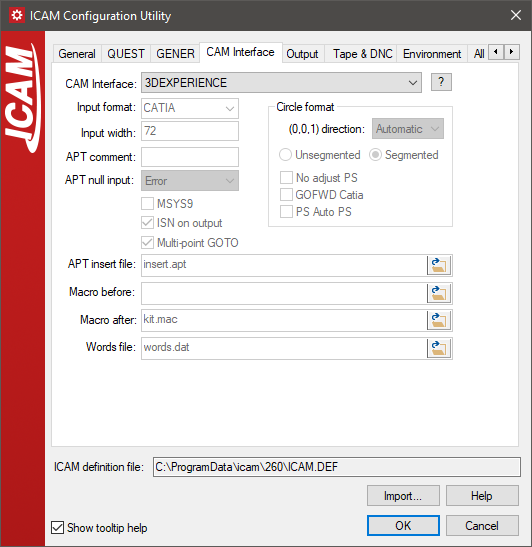
By default, GENER will attempt to automatically select an
appropriate CAM interface. It does so by using kit… definitions in
the ICAM.DEF file in each interface kit.
The kit_clfile symbol defines a file-match pattern unique to the
specific CAM system. A semicolon can be used to delimit a series of
possible file-match patterns (e.g.,
“*.ncl;*.ncl.*”).
The kit_cltext symbol defines text (in the form of a regular
expression) that is expected to be found in the first 100 bytes of
the file if the kit can not be uniquely defined by the file-match
pattern.
The kit_aliases definition lists one or more semicolon separated names that also can be
used to identify that interface kit.
If two or more kits are valid candidates, then GENER will prompt for the appropriate kit, or if prompting is not possible, will abort execution with a diagnostic message. QUEST does not have the ability to automatically select an appropriate kit since QUEST does not input CL files. If an interface kit is not selected, QUEST will use the default built-in list of Major and Minor words.
Selecting a CAM interface ensures that both QUEST and GENER are
configured to work with the same set of Major/ICAM.DEF file (e.g., C:\)
using the interface_kit symbol.
For example, after selecting the
“Generic”
interface kit in the configuration utility, the main ICAM.DEF should
contain the following definition:
let INTERFACE_KIT = "Generic"
The interface kit setting in the ICAM.DEF file can be overridden when
running GENER from the launch panel. Select the CAM button to bring
up the “CAM Interface Kit” panel and then choose an appropriate
interface from the “CAM System” drop-down list. As with the
Configuration utility, a list of standard CAM interfaces will be
shown along with a [?] button to obtain more details on the selected
one. It is important to note that CAM interface customization made
with this dialog are only remembered in the Windows Registry; they do
not affect the ICAM.DEF file.
The interface kit setting in the ICAM.DEF file can also be overridden
in QUEST and GENER by specifying the /ICAM.DEF file:
gener /
kit= Icam test.cld / post= abc01 …
You can also force QUEST or GENER to run without an interface,
regardless of ICAM.DEF settings, by specifying the kit command line
qualifier without an interface name.
gener /
kit test.cld / post= abc01 …
Typical Interface Kit Files
The following is a list of files you are likely to find in kit
directories. Not all kits use all of these files, but every kit must
contain, at a minimum, an ICAM.DEF file.
ICAM.DEFCAP270.DEFinsert.aptkit.macand possiblykit.objwords.datreadme.htmorreadme.txt
The ICAM.DEF file found in a kit directory defines just those
environment variables that specify that kit’s unique CLDATA file
format. Environment variables defined in a kit DEF file override
(i.e., take precedence over) those that are specified in the main
ICAM.DEF file (e.g., the one in the install directory).
A CAP270.DEF file will be found in each kit directory where the
CAM system outputs an APT-like CLDATA file. This DEF file is used by
the obsolete CAD-APT utility. CAD-APT was a required for GENER
versions 10.2 and earlier, which only had the ability to read Icam
formatted binary CL files. CAD-APT processes APT-like CL files and
converts them to an Icam binary format. The CAD-APT utility is
maintained for backwards compatibility. CAD-APT can also be useful in
situations where you are working with extremely large CL files that
are unable to fit entirely in the available virtual memory of the
computer.
The insert.apt file is normally found in kit directories where
the CAM system outputs APT-like CLDATA. This file contains special
instructions for the APT front-end processor used by GENER. The kit
ICAM.DEF file will contain an insert symbol
definition referencing this file if it exists. The name insert.apt
is used as a standard convention only; any name can be used.
The kit.mac macro source file contains one or more macros that
are needed in order to convert the CAM system’s fixed post-processor
commands into a format recognizable by Icam Post. The kit.obj file
is an optional pre-compiled version of the macro source. Either file
can be loaded by GENER at the start of a job (see
“Pre-Compiling Macros for GENER”). During macro processing,
macros defined in the kit.mac or kit.obj file can be setup to be
matched either before or after post-processor defined macros. The
choice is controlled by the use of either the mbdef or
madef symbol definition, which references the kit macro.
Standard interfaces use the madef symbol to
match the kit macros after post defined macros. The names kit.mac
and kit.obj are used as a standard convention only; any names can
be used.
The words.dat file defines keywords and associated integer codes
for any words that the CAM system outputs that are not known by
Icam Post. This is necessary because Icam Post internally represents
keywords by their numeric equivalent. The kit ICAM.DEF file will
contain a words symbol definition referencing this file
if it exists. The name words.dat is used as a standard convention only;
any name can be used.
The readme.htm or readme.txt file contains information that
might be of interest to those who use the kit. The [?] button beside
the interface kit selection in the Configuration utility and GENER
Launch Panel CAM selection looks, in order, for files named
readme.htm, readme.html and readme.txt.
Creating or Modifying Interface Kits
You can easily create a new interface kit or modify an existing
interface kit for your own purposes. It is highly recommended that
you do not modify any of the installed kit files, since changes to
these files can be lost when upgrading to a new release or when
reinstalling the software for any reason. Instead, new and modified
interface kits should be created in the kit subdirectory of the
application data directory.
The kit subdirectory name is used to identify the kit itself. The
application data kit subdirectory is always searched first for a
matching kit name, before searching the installation kit
subdirectory. Therefore, if the same kit exists in both the
application data and installation kit directories, the application
data kit is the one that will be used. Kit names are case
insensitive.
Each kit must contain an ICAM.DEF file, which identifies the
subdirectory as being an interface kit and also defines the
configuration details that are necessary for that specific CAM system
format. Kit DEF file symbols take precedence over (i.e., override)
those in the regular ICAM.DEF file.
The recommended method of modifying an existing interface kit is to recursively copy that kit’s files from the installation
kitsubdirectory to the application datakitsubdirectory. Once the copy is done, make any modifications necessary to the kit files in the application data area. You may choose to leave the name as-is, or to modify the application data kit name to something unique (do not include spaces in the name).The recommended method of creating a new interface kit is to choose an existing kit that most closely matches your requirements and then to recursively copy that kit’s files from the installation
kitsubdirectory to the application datakitsubdirectory. Once the copy is done, rename the application data kit to something appropriate and then make any modifications necessary to the kit files.
Every kit must have an ICAM.DEF file. We recommend that the kit
ICAM.DEF file only define those configuration settings that are
necessary for the new interface. Symbol settings defined in the kit
ICAM.DEF file override those in the default ICAM.DEF file. See
“The ICAM.DEF File” for a list of configuration settings.
Settings that affect the entire site, regardless of interface (e.g.,
the choice of HTML or text listing format), should be made to the top
level ICAM.DEF file using the Configuration utility (see
“The Icam Configuration Utility”).
A kit should include either a readme.htm or readme.txt file
describing the effect the interface will have on the input CL file or
post-processor. This file will be displayed if the [?] button is
pressed to the right of the CAM system selection in the GENER launch
panel.
A powerful feature of Icam Post is the ability to define a standard
set of user-defined macros to be used by all post-processors running
with the interface kit. These user-defined macros can handle syntax
conversions to ensure that all post-processor commands output by the
CAM system will be recognized by Icam Post. An ENDMAC command
terminates each macro. Startup/kit.mac file that performs
some post-processor command conversions. You should view the kit.mac
files supplied with Icam Post to get a better idea of what is
possible.
$$ Convert LOADTL… to LOAD/TOOL…
LOADTL/$P1*
LOAD/TOOL,$P1
ENDMAC

$$ Ignore parameters on GOHOME
GOHOME/*
GOHOME
ENDMAC
The macro source (.mac) file must be referenced by either the madef
or mbdef symbol in the kit ICAM.DEF file in order for the GENER to
use the macros. GENER will compile the macros at the start of
execution and terminate processing if there are errors. Alternately,
you can pre-compile the macro file using QUEST and reference the
macro object (.obj) file with these symbols. See
“Pre-Compiling Macros for GENER” for instructions on how this
is accomplished. Note that it is possible to define both before and
after macros, individually referenced by the mbdef
and madef symbols.
GENER will list the selected interface kit name along with the macro, insert and words file names, all on the first page of the listing.